
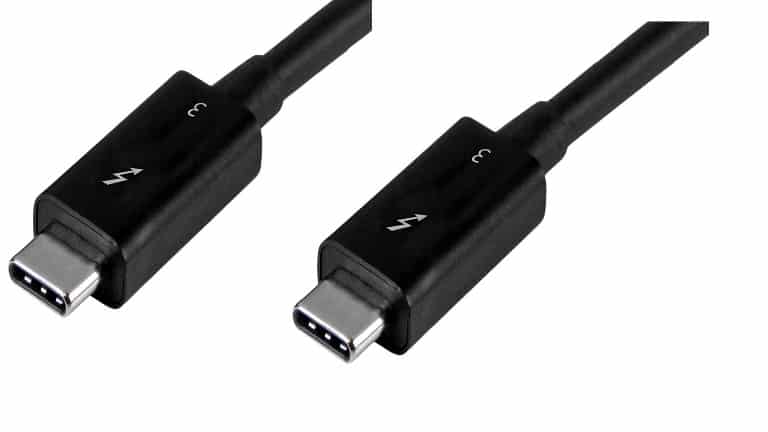
As technology transcends from day to day. There is a better way of doing things, things are improved and made better every day. And for that did you know that you can have access to laptops that have Thunderbolt 3.
Ports on your laptops are not merely for decoration, they have the ability to determine what can be done on your laptop and how much time it may take for you to do that.
Well, you may be a newbie and may not necessarily understand what thunderbolt 3 is but worry not, I will give you all the information you may need to know. Thunderbolt came into being in the year 2011 when USB 3.0 was all around making headlines and it would exchange data with so much speed. But Thunderbolt was able to do that even two more times better.
You might be still wondering what thunderbolt 3 really is? Well, it is something simple but yet does wonders. It is the newest version of thunderbolt and has as design as that of USB -C connector.
It has provision for many things but I will give you a few of these things that it is able to do
- It supports display port protocol meaning you are able to use a cable for your daisy chain and it also gives you room to drive multiple 4K displays at only 60 Hz.
- It enables you to connect with speeds of up to 40 Gbps, which is actually twice the previous generation, this also means that it is bigger and better.
- It goes on to offer USB speeds of up to 10Gbps and it can still connect up to 4K displays.
And it is very vital because it is the third generation of interconnect technology. It is fast and able to get the ergonomics right. Moreover, it is flexible and able to provide a power of up to 100 watts.
Having encountered the above some of the essential things that thunderbolt 3 is able to do. I endeavor to take you through the best laptops with thunderbolt 3 on the market. There are many laptops on the market that support Thunderbolt 3, they are either good to bad or even worse but here I bring to you not only the best but the very best there is.
I will review 8 products and leave room for you to have your pick. I will give you all the necessary information whether bad or good so that you are not impeded from making a well-informed decision at the end of the day.
And knowing both the good and bad keeps you from spending on things that you may consider not worth it. But I know that all the products I will present before you are worth your money.
And here we are unfolding each product bit by bit till there is nothing left hidden.
- Msl G565 Stealth 2.
- Hp Spectre X360
- Apple Mac Book Pro
- Asus Zen Book Pro 15
- Elukronics Pa 71 Hp
- Razor Blade Stealth
- Lenovo Yoga 730
- Dell G3
Top 8 Best Laptops with Thunderbolt 3 Reviewed
1. MSI G565 Stealth 2.

 This laptop has a very high performance and it’s very reliable, it does not do disappoint but gives you the best of what you need. With its ultra-thin bezel structure, it is able to stand tall when compared with other laptops. It is not merely a laptop it has glam and makes your gaze fixed on it. Its inside has been fitted with a thunderbolt 3 that is of heavy-duty and has high quality.
Not to forget that it is lightweight and can go up to 12 hours without lagging behind when the activities being done on the laptop become many. If the battery can run for 12 hours you need not worry a thing, you are well-covered ad sorted out, you will not have to bear the burden of carrying your power pack around.
It has been built with the latest technology, not only the latest but powerful too and it is very fast and can process data in just seconds. Its display is of very high quality within ultimate HD graphics that leave you with a feeling of smoothness and fluidity. MSL G565 STEALTH gives you a platform to get the plainest visual experience your heart desires.
Its Thunderbolt 3 has 3 USB that gives you a lot of connection possibilities that allow you to connect with many devices at the same time. And even as you go about doing this you will still be able to efficiently work without any disturbance.
It has a very good sound and audio system that will make you not miss out on anything as everything is as clear as possible.
Features:
Screen size is 15.6 inches, processor intel core i7-85750, an ultra-bezel thin, graphics card is NVIDIA GeForce GTX 1060 6G GDD R5.
Specifications:
Storage is 256GB SSD, RAM 16GB weight is 1.7 lbs, operating system is windows 10 professional, memory max is 32, AC adapter is 180 slim adapter.
But it has some advantages and disadvantages, but the good thing is that the advantages outweigh the disadvantages.
2. HP Spectre X360
 Second, on my list is the HP SPECTRE X360. Please note that I am not listing these laptops in any particular order. It is a very top-quality brand and many people can testify to that.
It is lightweight and is very portable with a marvelous touch screen. it has also a thunderbolt 3 that gives you access to multiple connectivity options that enable you to do all your work without lagging behind, you can do anything and everything at once.
Meanwhile, it has an 8th generation function and it makes sure that your work is perfectly done but it requires long term charging and the good news is that it has very big storage. It can run up to 10 hours, you can trust this laptop despite your multi-tasking it has your covered and its battery life will not give up on you.
It can store a very huge amount of data as well as keep your movies, games, and music without clashing.
With this laptop, you are able to transfer data even up to 40Gb/s. Also, you are able to make sketches in HP spectre and they can be displayed on another screen that may just be connected to the Thunderbolt 3 but you should know that this laptop is not necessarily good for gaming.
It has excellent features like those listed below and they will without a doubt blow your mind and make you appreciate all the effort that has been put together to make this laptop work.
Features:
Processor 4 GHz intel core i7, RAM 16GB DDR4 RAM, graphics card intel HD graphics 620, operating system is windows 10, weight is 2.8lbs.
Specifications:
Screen resolution 1920×1080, max screen resolution, screen size is 12 inches, storage is 512GB SSD.
3. Apple Mac Book Pro

 Firstly, it has a retina display that has bright LED lighting and very high contrast ratio, it can be adjusted automatically to match one’s desired color temperature and it audio system is very vital as it has very high fidelity system.
With the Apple Mac book Pro, you are able to experience more power and performance. It is able to elevate a notebook to a whole new level of performance and stability. With this, you will be able to reach and everywhere your ideas may take you with ease and speed.
And with its 8th generation processor, it is able to reach new heights in terms of performance.
It has an eye-opening graphics performance that features a Radeon Pro discrete GPU and it makes sure that you are able to enjoy smooth, crisp and beautiful images even as you go about doing your activities.
It has a solid-state drive that is blazing fast and will just enhance and make your work very easy to do. It speeds up your activities and you will not waste any time. It has very excellent specifications and its quality of the hardware is spot on.
Though having excellent features, it is very affordable and you can afford it without a doubt. Its processing speed and memory is advanced and high and its graphics too remain on point and it can configure up to 32 GB of very high performance 2400 MHz DDR4 memory
It is a 15 inches model that gives fluidity in performance. Did you know? that when you flick your finger on the sensor you can adjust (minimize or increase) brightness and the volume of sound. It is there to make your work easy and it has a touch bar that enables you to make shortcuts of applications or any other documents on your laptop.
With its advanced security system, you can perform many functions, with its touch you can unlock your Mac Book and even access different system settings and even locked notes. And now its features and specifications.
Features:
Operating system is windows 10, processor is Intel core i5, graphics card s intel Iris graphics 550.
Specifications:
RAM 8GB DDR3, screen size 13.3 inches, storage 256 weight 3lbs.
4. Asus Zen Book Pro 15

 It has unlimited possibilities with its two USB-C ports and it has the latest thunderbolt 3 technology for versatile and its ultra-fast connections make activities swift and plain. Its thunderbolt supports power delivery and the dual 4K display, this is a superb choice for your graphics you need it.
It has been built with an elegant style with its precision-crafted in solid aluminum unibody features. It has gaming-grade features and uses the latest NVIDIA GeForce and it delivers all the horsepower you may need.
It also has an astonishing processing power that is able to shame most desktops and its SSD delivers very excellent responsiveness.
Features:
Processor -Intel Quad Core i7-8565U which is a turbo boost of up to 4.6GHz,15.6inch Full HD display 1920×1080 pixels resolution.
Specifications:
Nvidia GeForce GTX 1050 Ti which is a gaming processor, can take up to 16 GB DDR4 of ram, its equipped with a Solid State Drive for faster processing. The whole laptop weighs around 4.2 pounds.
5. Elukronics PA 71 HP

 Yet again we have a great laptop with thunderbolt 3 totally ready. It is not only the best but has made it to the top on the lists that reflect laptops with thunderbolt 3. I am not merely saying to entice you into buying this but it is what it is. As we go forward you will get to see that for yourself. Ride along with me and let us keep gazing at this product as we unveil its specifications and importance.
It has a super-fast processor that amplifies your performance and it can store data both large and small at on point in its high storage of about 256 GB solid-state drive but it also has a 1TB storage.
Its screen is a full HD with 17.3 inches plus a 120Hz LED that makes it a total glare. And its NVIDIA GeForce you are able to experience the best of graphics. With its GPU you can run high-end games and even casual ones and this will be even more interesting as your display is vivid and bold.
But unfortunately, it is not portable, it is a heavyweight with a weight of about 6.9 lbs., it has a thin bezel of 0.98 inches thin that gives a thin bezel look thereby adding to the beauty of this piece.
It has been not only been equipped with thunderbolt 3 but also 4 USB 3.0 ports that give you enough room to diversify your connectivity. Did you know that the Thunderbolt 3 ports help to make sure that the device is charged very faster unlike other ports? Yes, it does and it does that very well.
Features:
Operating system is windows 10 home 64-bit, graphics card NVIDIA GeForce GTX 1060.
Specifications:
Screen size 17.3, storage 256 GB SSD, RAM 6GB GDDR5 VRAM, Processor is Intel Core i7-7700HQ, weight is 6.9 lbs.
6. Razor Blade Stealth
 This goodie right here is ultra-portable it is thick with a smaller footprint, not to forget that it has incredibly thin screen bezels. And it only weighs about less than 2.82 pounds.
It has also been made with high quality black anodized aluminum and its chassis feels so good.
Unlike the old brand, this one right here has been improved and its features have been improved. It has a square shape and is similar to the design language of the flagship blade 15. This one right here is more eye-catchy, unlike these other brands that have been created before.
It is clean and elegant and has been customized with RGB backlighting, and its keyboard offers very high performance although the lack of optical switches and tactile imply that the keys are not very reactive.
Features:
Operating system is windows10 pro, the graphics card is Intel HD Graphics 620, RAM 16GB DDR4 RAM.
Specifications:
Screen size is 13.3, storage is 512GB SSD, process intel core i7 8550U, weight is 2.8lbs.its dimensions are 305x210x15.3.
7. Lenovo Yoga 730
 This is one of the cheapest laptops on the market and it has a thunderbolt 3. And it is one of the most popular laptops on the market with Thunderbolt 3. It has the ability to switch into a tablet mode or a traditional notebook thereby giving you a lot of control and versatility despite the environment you may be in.
You are able to flip this laptop into a tablet and take your notes while in a business meeting, conference, class or even in the church. And in this same mode, you are able to draw and edit your work. And it comes with a very efficient 8th gen intel core processor that provides you with faster performance and a long battery life.
It further has a solid aluminum chassis with a YOGA logo engraved on its top corner and it adds on to its elegant look. Guess what? Its hinges are solid and sturdy enough and are very able to withstand the laptop’s daily usage as well as switching into a tablet and laptop mode. It is very unique as it is able to rotate at 360 degrees in order to provide three different modes namely:
- Tent
- Tablet
- Laptop
Even as this is done is able to adjust its apps and display them in a manner that still is comfortable and easy to operate in.
Its weight is okay, it is decently portable and easy to carry it though, you will need a backpack that can contain it but its weight will not stress you unless you just carry it for a very long time.
Features:
CPU 1.60 GHz intel core, graphics intel UHD graphics, camera 720 p HD webcam
Specifications:
Weight is 2.62 pounds, connectivity is 802.11ac, ports 2xUSB TYPE C thunderbolt, RAM 8GB DDRM
It may be very cheap yet efficient and very powerful, do not hesitate to go for it. Its features just speak for it shows you that it’s not about how much its costs but it’s about its features and what has been put in it to be what it is.
8. Dell G3

 It is very thin and stylish and has been constructed for convenience. It has very excellent power with its 8th gen processor that provides you with responsive powerful performance whether you are streaming videos, working or gaming. And even if work was to get hotter you are able to stay cool under pressure with its dual fans that makes your system cool regardless of what you are doing.
Did you know that it has been built for speed with its dual drives with SSD options that ensure you have better reliability and faster and swift performance. It also has improved wireless just for you.
And whether you look at it from any angle it still looks very stunning and lovely and it has a wide viewing angle.
Features:
CPU is intel core, graphics is NVIDIA GeForce GTX 1050, USB ports, camera is widescreen HD, connectivity is intel wireless 9462AC.
Specifications:
RAM 8GB, screen size is 15.6-inch FHD, storage is 128GB SSD battery life is 56 hours, 4cell battery, weight 5.57 pounds.
I have given you’re a list and explained each and every laptop with adequate information. But now I will give you the importance of buying a laptop that has a thunderbolt 3, they will sweep you off your feet and you will have no choice but to buy after seeing their exhilarating importance.
1. It gets the ergonomics right
The first and second generations of thunderbolt were equipped with a mini display port connector but then this giant has been equipped with USB Type-C.
2. It is swift simple and very fast
It is very fast and its ports can be used at the same time without disturbing other activities that may be taking place, so I advise you to abandon other ports and get married to this thunderbolt and when you compare it to USB 3 can you believe that it is eight times better.
3. It is extra flexible
It is flexible and very fast it can deliver power data connection and even video all at the same time and it also opens many amazing possibilities on your desktop. It also provides power up to 100 watts and you are ale to charge your MacBook Pro or any other notebook with its port through peripherals and at the same time you can get data from them. And this power can be delivered in all directions.
There you have it all from defining thunderbolt 3 to giving you its importance to giving you the best laptops there is with thunderbolt 3 and whatnot, we are now done and everything you may need to get one is right here above.
CHOOSE AND DO IT WISELY. Remember despite me giving you the above information it all goes back to how thick your pocket is and your preferences whether you need a lightweight or heavyweight laptop and the like.