
Share on twitter
Share on email
Share on whatsapp
Sometimes we spend many hours working on our computers and we feel like someone would have beaten us, but the fact is that there are devices that don’t help us to have a comfortable performance even when they accomplish their labors. But there are devices designed for people like you and me, users who need specialized items to make the working experience something more pleasant. Ergonomic mice are that kind of equipment.
What is an ergonomic mouse?
The ergonomic mice are evolved traditional mice. These mice are specially designed to improve the user’s performance by making their mouse-grip experience something more comfortable, reducing muscle-strain and other injuries such as carpal tunnel syndrome, arthritis, and tendonitis; but also increasing mice regular uses and adding new ones, turning it into an integral functional equipment.
There are different types of ergonomic mice
Ergonomic “Horizontal” Mouse
This is the most popular. It has a contoured dome shape for comfort, and uses either optical or laser to track movement. It also can be a roller ball mouse, with the ball on the bottom of the mouse.
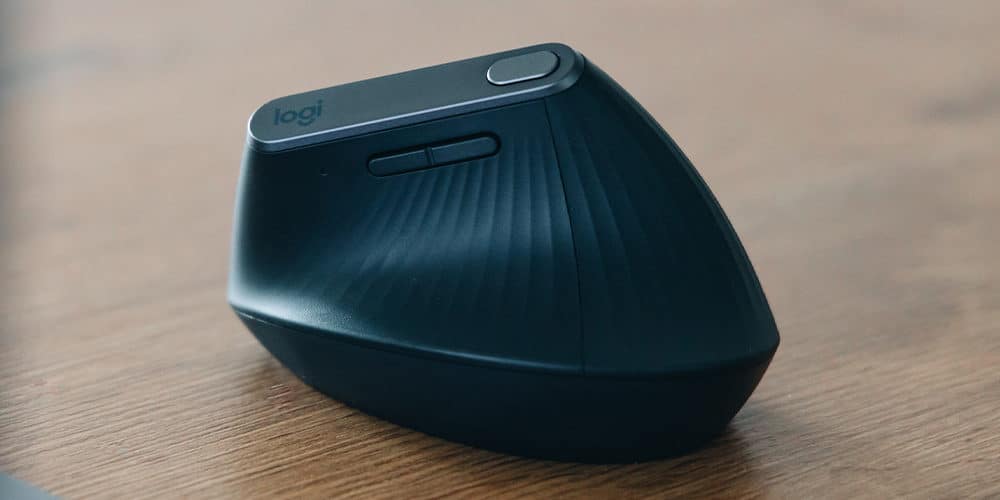
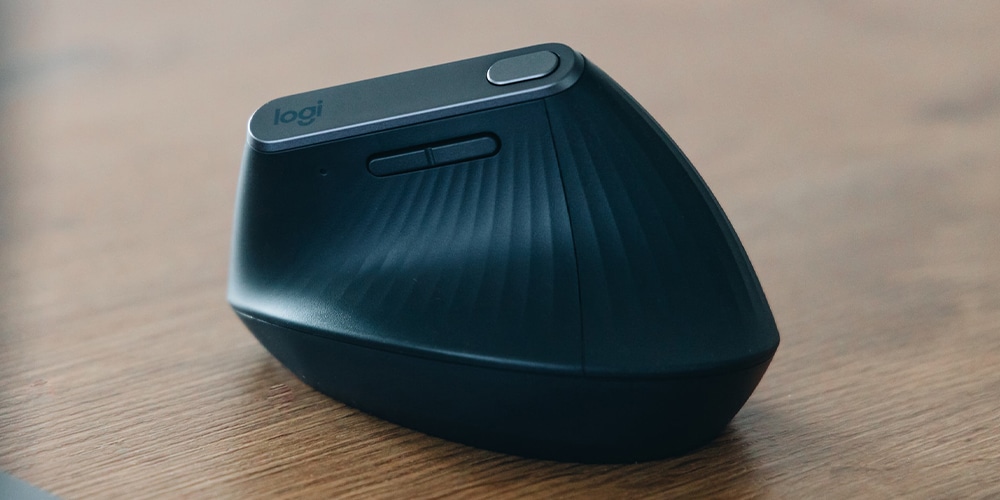
Ergonomic “Vertical” Mouse
The user holds it as in usual handshake position would do, so the primary buttons are located on the side.
Trackball Mouse
With a track ball mouse, the base remains stationary as a ball rolls on the top to control the mouse cursor. This requires less space and less arm movement.
Pen Mouse
This is a regular mouse housed in a pen form factor. This lets you hold the mouse similarly to a pen or pencil, with very little wrist movements required to operate it.
Joystick Mouse
This is a radical vertical mouse, used by people suffering from certain musculoskeletal issues, like carpal tunnel syndrome, tendinitis and arthritis.
https://www.youtube.com/watch?v=Ikzp22bNxOs
Top 10 Best Ergonomic Mouse
- Logitech MX Ergo Wireless Trackball Mouse
- Logitech MX Vertical Wireless Mouse
- Perixx PERIMICE-713 Wireless Ergonomic Vertical Mouse
- Logitech M570 Wireless Trackball Mouse
- Anker Ergonomic Optical USB Wired Vertical Mouse
- ZLOT Vertical Gaming Mouse
- Jelly Comb Wireless Vertical Mouse
- Kensington Ergonomic Vertical Wireless Mouse
- Jelly Comb Vertical Wireless Bluetooth Ergonomic Mouse
- DELUX Wired Ergonomic Vertical Mouse
Here you’ll find the features and specifications of each one with their pros and cons, so you can choose the right for you.
1. Logitech MX Ergo Wireless Trackball Mouse
No products found.You can find this wireless trackball mouse on Amazon for $85. This is the perfect match to complete your multi-device workstation of wireless system, specially designed for helping you to work efficiently.
Features
This is a Logitech ergonomic mouse with wireless, Bluetooth and USB connectivity technology, hardware interfaces of Bluetooth and USB, trackball mouse sensor technology for laptop and PC hardware platforms. It works nicely with Windows 7, Windows 8, Windows 10, or later, macOS 10.13 or later and Linux operating systems. Its rear webcam resolution is 4000 MP and its wireless type is 2.4 GHz of radio frequency.
You will have cross-computer control and game-changing capacity to navigate on 2 computers at the same time and you’ll be able to copy and paste text, images, and files from one to the other using the Logitech mouse. It has dual connectivity to use with up to 3 Windows or Mac computers via included Unifying receiver or its Bluetooth smart wireless technology. This ball mouse also has a high precision scroll-wheel and a customized comfort with an adjustable hinge to choose the best angle between 0°and 20°. Its Logitech Options Software helps you to set up and assign tasks to its 8 customizable buttons that will stand up to 10 million clicks.
Specifications
This ergonomic mouse has a sculpted design with adjustable hinge that allows the user to customize its angle from 0 to 20 degrees, giving a natural and comfortable position, reducing muscle strain. It has a rechargeable battery which can stand 70 days of use with one charge (one minute of charge can last one day of work). Its nominal value is 380 dpi. The item dimensions are 3.92 x 5.21 x 2.02 inches, weighing 5.76 ounces and it comes in color black.
Pros
- It gives an effortless workflow
- It allows seamless file sharing
- It is easy, fast and secure
- It is multi-computer useful
Cons
- It’s an expensive mouse
- It is right-handed only
- It’s hard to get precision cursor movements
2. Logitech MX Vertical Wireless Mouse
No products found.You can buy the Logitech MX vertical on Amazon for $93. This is a wireless vertical mouse with 10m of range, ideal for comfortable working.
Features
The manufacturer is Logitech, a company that has come up the best vertical mouse for many users. Its connectivity technology is wireless, Bluetooth and USB with USB hardware interface. Its optical sensor technology allows a smooth performance. It is designed for laptop and PC hardware platforms and it works with Windows operating systems. Its wireless type is 802.11a.
This MX vertical mouse has a super-efficient tracking of 4000 DPI as its high precision sensor requires 4 times less hand movement. It also gives cross-computer control and game changing capacity to work in three different computers. It is able to be connected through wireless USB (10 meters range), Bluetooth smart technology or USB C charging cable.
Specifications
The Logitech vertical mouse comes in black color and its dimensions are 5 x 4 x 4 inches, weighing 8 ounces. It has an advanced ergonomic design with 57-degree angle, reducing forearm twisting and muscular strain by 10 percent. It comes with a quick charging rechargeable battery that can stand up to 4 months of use with one full charge.
Pros
- It has a futuristic design
- It has a nice connectivity through Bluetooth or USB
- It has creative software
- Its ergonomic shape allows natural hand positions
Cons
- It has a scroll wheel feel
- It needs to be heavier
- It isn’t really that comfortable to use
- Its extra features are sluggish
- It isn’t that useful for high-intensity mouse work
3. Perixx PERIMICE-713 Wireless Ergonomic Vertical Mouse
No products found.Amazon has this amazing vertical mouse for $ 20 on its platform. This equipment will turn your hours of labor into a more comfortable task.
Features
Perixx is the company responsible for this creation. This mouse has wireless connectivity technology in USB 2.0 hardware interface. Its 1000/1500/2000 dpi optical sensor technology will serve you nicely in Pcs and laptops with Linux, Windows XP, Windows Vista and Mac OS X operating systems. Its 802.11a/b/g/n wireless type operates at 2.4 GHz of radio frequency with 10 m of range. It has an On/Off switch and 6 buttons design with dpi switch included.
Specifications
The mouse uses 2 AAA batteries and it is right-hand designed. Its dimensions are 4.92 x 2.44 x 3.03 inches, weighing 5.1 ounces and it comes in black color. The vertical design keeps the hand in its natural shape without forcing it to twist. The palm of the hand rests on the mouse instead of hovering the wrist in the air, allowing you to work for many hours straight. Its streamline design delivers an stylish look all day.
Pros
- It is really affordable for the quality
- It is comfortable for large and medium hands
- It is lightweight with excellent low-friction pads, so it’s easy to move around
- It works with no drivers required
- It comes with batteries included
- It works quietly and smoothly
- It works on every surface
- It has an attractive design
Cons
- It has no rechargeable option
4. Logitech M570 Wireless Trackball Mouse
No products found.This Logitech mouse costs $33 on Amazon Platform. For a lot of users this is best trackball mouse you will find. You don’t have to move your hand from one place to the other as you had to with a traditional roller ball mouse, since now you have all under control with one single finger.
Features
Logitech company has created this amazing mouse with wireless connectivity technology and USB 2.0 hardware interface. Its trackball sensor technology perfectly works on laptop and PC hardware platforms with Windows XP, Windows Vista, Windows 7, Mac OS X 10.5 operating systems and DDR3 SDRAM computer memory type. Its 802.11abg, 802.11a/b/g/n wireless type works on 2.4 GHz radio frequency up to 10 m of range.
This trackball mouse includes the Logitech unifying receiver, which stays in your laptop for moving around with ease. Also, you are able to add a compatible keyboard, number pad or mouse without the hassle of multiple USB receivers. The integrated scroll wheel and back/forward buttons make control even easier whether you are browsing in your laptop or desktop.
Specifications
The item dimensions are 5.71 x 1.77 x 3.74 inches, weighing 5 ounces and black-colored designed. Its 100 volts battery can last for 18 months while its indicator helps to ensure, so you won’t ever be surprised over low battery level.
https://www.youtube.com/watch?v=ooj5P5B8TaU
Pros
- It keeps comfortable over a long period of time
- It has a precise cursor control
- It works on any surface
- It has a long wireless range
- It has a long battery life
Cons
- It takes some time to get used to using the trackball
- Its browser buttons are far from users’ fingers
- Its buttons make loud clicking noises
5. Anker Ergonomic Optical USB Wired Vertical Mouse
No products found.Amazon offers this awesome vertical mouse for $ 23 on its platform. This is an affordable price in exchange for its many great features.
Features
Anker is the manufacturer company that has designed this USB wired ergonomic mouse. Its hardware interface is USB working on laptop and PC hardware platforms. Its optical sensor technology will give a reliable performance with Mac OS X, Linux, Windows XP, Windows vista, Windows 2000, Windows 10 operating systems. Its 1000/1600 dpi resolution of optical tracking will provide more sensitivity than any standard optical mice and it works over almost any surface. It is designed with next/previous buttons, useful for web page browsing. This is an excellent choice for people who spend many straight hours working in computers, such as engineers, photographers, graphic designers and illustrators.
Specifications
The mouse weighs 3.36 ounces, its dimensions are 4.8 x 2.52 x 2.95 inches and it is black-colored. This is a scientific ergonomic design that gives a healthy neutral “handshake” to arm position, accomplishing a smooth movement without overall strain. Its USB cable has 1.5 m of length. Its package includes: 1 Anker vertical ergonomic optical mouse, its USB cable and 1 instruction manual. The purchase also includes the 18-month warranty and lifetime technical support from the company.
Pros
- It has an effective vertical design
- It delivers the premium feel and build for its price
- Its optical sensor nicely works on many surfaces
Cons
- Its poorly placed browser back/forth buttons are hard to reach for small hands
- Its surface is slippery
6. ZLOT Vertical Gaming Mouse
No products found.This is an incredible ergonomic gaming mouse that you can get on Amazon platform for the price of $ 30. Gamers always need improved equipment as their tasks are high demanding and this vertical mouse will definitely make a difference.
Features
ZLOT has created this wired connectivity technology mouse with a USB hardware interface. Its optical sensor technology works nicely on laptops and PCs hardware platforms with Windows XP(x64), Vista, 7, 8, 10 and also Linux operating systems. It has 6 buttons and 1 joystick which means 11 keys to work with. Its button life can last for 10 million times and its roller life can stand 1.2 million turns. The resolution of its optical sensor is 1500-2500-4000-7000-10000 dpi with 5 adjustable levels and customizable sensitivity. Its rate of return is from 125 to 1000 Hz.
Its ergonomic vertical design, unlike usual trackball mouse gaming, gives a major support for your forearm, reducing pain after many hours of playing.
Specifications
This mouse comes with a USB cable of 1.8 m length, a 5V/100 mA working voltage battery, its instructions guide, its foot mat and its driver disk. Its dimensions are 4.33 x 2.83 x 3.01 inches, weighing 8 ounces in a black-colored design.
Pros
- It comes with a 1-year limited warranty
- Its wire is long enough
- It is really easy to program and customize
- It has a nice dpi range
- Its USB cord is braided but not stiff
- It delivers a smooth tracking
- It has a nice RGB feature
- It has two programmable buttons and two profile save slots
- It gives a set of replacement pads
Cons
- Its top joystick isn’t 8-way kind
- Its joystick is unidirectional
- Its joystick isn’t really easy to use
- Its software requests administrator access every time you turn on
7. Jelly Comb Wireless Vertical Mouse
No products found.Now we have a really affordable vertical mouse. This is ideal for low budgets as you can get this nice ergonomic mouse for $16 on Amazon platform.
Features
Jelly Comb has designed this wireless connectivity technology mouse with a USB 2.0 hardware interface and an optical sensor technology that will work nicely with Windows XP, Windows 2000 Server, Linux and Windows Vista operating systems.
This mouse delivers a high responsiveness of 800 / 1200 / 1600 dpi resolution, providing a higher sensitivity than usual optical mice. It works on pretty much every surface with a quiet click sound. Its next-previous buttons give a convenient functionality while browsing. However it isn’t fully compatible with MacBook and Mac os x operating systems.
Specifications
It uses 1 AA battery. Its dimensions are 4.6 x 2.7 x 2.3 inches, weighing 3.2 ounces in a black-colored design. Even when it takes time to get used to these kinds of mice, this one will reduce tension in the hand by giving a natural “handshake” position. The package contains the amazing mouse, its 2.4 G USB receiver and its lifetime warranty service. The company offers a full refund or new replacement if you aren’t happy with your purchase.
Pros
- It has a nice and comfortable ergonomic design
- It delivers a stable connection
- It gives quiet working hours
- It is really easy to use
- It fits in large and small hands
- It’s rechargeable
- Its battery life lasts up to 2 months
- It helps prevent carpal tunnel
- Its multifunction features are very useful
- Its buttons have a nice texture
Cons
- Its AA battery isn’t included in the package
- It isn’t properly supported by some MacOS systems
- Its buttons are so sensitive that it is easy to accidently bump them
- It only comes in one size
- It is light plastic
8. Kensington Ergonomic Vertical Wireless Mouse
No products found.Amazon offers for $24 this amazing ergonomic wireless mouse. If you buy this equipment, you will get a whole new mouse-grip experience.
Features
Kensington company has created this wireless connectivity technology ergonomic mouse of 2.4 GHz with a 10 m range. Its USB hardware interface and its optical sensor technology works perfectly in PCs and laptops with Windows and MacOS operating systems. This is a plug-and-play device with no software or drivers needed and TAA compliant. Its left, right, forward and back buttons offer high control in browsing with dpi settings of 800, 1200, 1600, 2000, 2400 and an On/Off switch. Its auto-sleep function is really useful as it helps to save battery. The mouse will auto-sleep when it isn’t being used for more than one minute, and just moving the mouse will wake it up. After ten minutes of not using it, the mouse goes into a deeper sleep, and clicking or using the scroll wheel wakes it up. Its low-battery indicator light comes on when the battery gets lower.
Specifications
The dimensions of this item are 6.22 x 3.46 x 3.23 inches, weighing 7.2 ounces. Its ergonomic vertical design gives an angled slope to maintain your wrist in a neutral position, helping to relieve compression and improving forearm posture for comfort and major muscle support. It uses a AA battery which isn’t included in its package.
Pros
- It has a fully programmable design
- It is easy to use
- It has useful extra buttons
- It has excellent wireless connectivity
- Its removable batteries mean the mouse has a larger lifetime
Cons
- Its removable batteries are a bit antiquated
- It isn’t good for big hands
- It isn’t for left-handed people
9. Jelly Comb Vertical Wireless Bluetooth Ergonomic Mouse
No products found.This vertical ergonomic mouse is available on Amazon platform for $20. Try one of these amazing mice and you will find it useful for reducing mouse-grip pain.
Features
Jelly Comb has come up with an affordable and high quality wireless ergonomic mouse. Its wireless, Bluetooth, USB, radio frequency connectivity technology is really useful for people who spend many hours working on the computer. Its USB hardware interface and its optical sensor technology work nicely in laptop, PC and Mac hardware platforms with Mac OS X, Windows, Android operating systems.
Its Bluetooth and 2.4 G wireless connection allows you to control two different devices at the same time and easily switch between Android, tablet and Mac with one single button. It gives a silent performance with a 1000/1600/2400 adjustable dpi levels over many surfaces. Its clicking life expectancy is 3 million times.
Specifications
The item dimensions are 5.9 x 3.4 x 3 inches in black design, weighing 3.98 ounces. Its advanced ergonomic design places your hand naturally in a maximum support. Its concave area is designed for the thumb and the little extended bottom edge grabs the pinky finger, this means a smoother movement and really comfortable mouse-grip. The package contains the wireless mouse, its USB receiver and the user manual. It uses 1 AA battery which doesn’t come included in its package, but Jelly Comb gives the user a 12-month warranty.
Pros
- It is precise
- It gives a quiet click
- It has a unique look
- It has a smooth exterior
- It is easy to set up
Cons
- It doesn’t come with a battery
- It isn’t so comfortable for people with small hands
10. DELUX Wired Ergonomic Vertical Mouse
No products found.Amazon has this nice vertical mouse on its platform for $32. This isn’t really a cheap ergonomic mouse, but after hours of working/studying/gaming on the computer and your hand isn’t hurting for mouse-griping, you’ll know it is worth it.
Features
Delux brings us this beautiful USB connectivity technology ergonomic mouse. It has a USB 2.0 hardware interface with optical sensor technology that will work nicely on laptops and PCs hardware platforms with Windows XP, Vista, 7, 8 and 10 operating systems. Its RGB Lighting and software setting delivers a marvelous working experience, so if you want to turn On/Off the lights, the switch is in the bottom of the mouse. It has 800-1200-1600-2400-4000 adjustable dpi in its 6 customizable buttons.
Specifications
Its dimensions are 4.21 x 3.74 x 3.54 inches weighing 7.41 ounces. It has a unique vertical ergonomic bionic design which reduces arm discomfort and hand stiffness. Its removable wrist rest makes this device really comfortable to use. Also, this mouse includes a 12-month warranty and free lifetime technical support from Delux.
Pros
- It is comfortable to hold
- It installs easily on Windows 10
- It works fine without drivers
- It has pretty lights but you can turn them off if you want to
- Its extended rest can also be removed
Cons
- It takes some time to get used to this mouse
Conclusion
Finding the right equipment makes your time in the computer way more efficient, making an investment on getting the best ergonomic mouse will let you spend many hours working, studying or gaming without any pain and that will give you a better performance than with usual mice.
Table of Contents
As an Amazon Associate I earn from qualifying purchases