
Hi everyone. I’m Muk’s. I have just completed a university degree in Ergonomics and Human Factors. In this post, we will discuss some of the best ergonomic keyboards for small hands that you can find on the market.
For my final thesis, I decided to create and maintain this blog. Here, I’ll review and compare different products in the quest to find the best ergonomic keyboard available today. It won’t be an easy task, but I’m up for it! There are tons of stuff out there and the choice is not easy. I hope that with this website you will find the right fit for you – and your wrists!
What is the best ergonomic keyboard?
Why focus on keyboards? Well, I’ve spent the last few years of my life attached to one and I figured this would be a great place to start. Someone like myself who spends a lot of time typing on the computer could find himself injured. Luckily, I have enough knowledge of ergonomics to know how to avoid these injuries. However, some people might not, hence the idea of this website came to mind. I’m focusing on keyboards because I think that they are now part of our day to day life and a lot of people overlook the dangers of using a less-than-optimal keyboard.
So go ahead a browse! My wish is that you find the best ergonomic keyboard for you, the one that will fit your expectations, price and ergonomic standards. I’ve also added links for you to purchase the products I’m reviewing, in case you would like to do so.
Best Ergonomic Keyboards for Small Hands Reviewed
1.Kinesis Freestyle2 Ergonomic Keyboard

 No, it’s not broken. It’s the Kinesis Keyboard Freestyle Solo, and it’s meant to be like that!
Some people are just never happy with their hand position and they want full flexibility of their keyboard placement. Some people like to have their keyboard a certain way for typing, and another way for gaming. For those people, we present the Kinesis Keyboard Freestyle Solo.
This ergonomic keyboard is truly one of a kind as it is in two separate parts and completely split down the middle. This means that the user has complete control over where he wants to position his hands. The cable connecting the two halves is around 8 inches long, meaning that you’re able to have complete flexibility on their location.
The cynical side of me does seem to think that Kinesis (the manufacturer) is just trying to accommodate all shapes and sizes and therefore it’s forgoing the investment in researching optimal injury reduction – instead of leaving it in the hands (or wrists!) of the user. It’s totally fine by me, it just requires some research from the users on how exactly they should display the keyboard to be most efficient.
Features
The Kinesis Keyboard Freestyle Solo can be purchased with additional kits to further extend or manipulate its functionality:
- Ascent Kit. This can increase the angle of the keyboard vertically from the desk up to 90 degrees. (Imagine two bookends and then stick the keyboards on the outside edges).
- VIP Kit. This includes a ‘tent’ base which fixes the angle of the keyboards to be raised in the middle, like more conventional ergonomic keyboards. It also includes a set of different wrist rests.
- Tented Kit. This is the standalone “legs” that increase the angle gradually upwards in the middle of the keyboards, making the right board slope upwards on the left and the right board slope upwards on the right.
- Incline Kit. This kit basically transforms the two separate keyboards into one fixed keyboard with a fixed base platform, thus forgoing the whole point and attraction to the moveable separate keyboard areas.
The Kinesis Keyboard Freestyle Solo does not have a keypad, at all. If you frequently use the keypad then this may be an instant ‘no-deal’ for you as you’d have to buy a separate keypad assemble and move your hands from one to the other. Which, by the way, is a major no-no in the ergonomics / repetitive injury world.
The awkward ALT keys can also be an issue. It is almost completely impossible (unless you have hands like a pianist) to press the ALT key without moving your entire hand. If you’re on a Mac and using the Mac equivalent then this could also be a deal-breaker.
Being able to move the two sides of the Kinesis Keyboard independently makes this a very flexible ergonomic keyboard. With this level of flexibility and customization to perfectly suit your desk, position, and resting angle the Kinesis Keyboard Freestyle Solo is one of the finest examples of ergonomics. Buying this keyboard will require you to actually do the research on how to use it properly. Unlike other models that are imposing you the design, you have full control and therefore it’s your job to know what’s best for your wrists.
My main concern was highlighted when I visited a friend a few months back and noticed he was using a Kinesis Keyboard Freestyle Solo with the two halves side by side, thus defeating the whole point. Once you have purchased this item, make sure you do your homework and find the perfect hand placement for your wrists. After all, this keyboard was made to be customized to the fullest – use this potential!
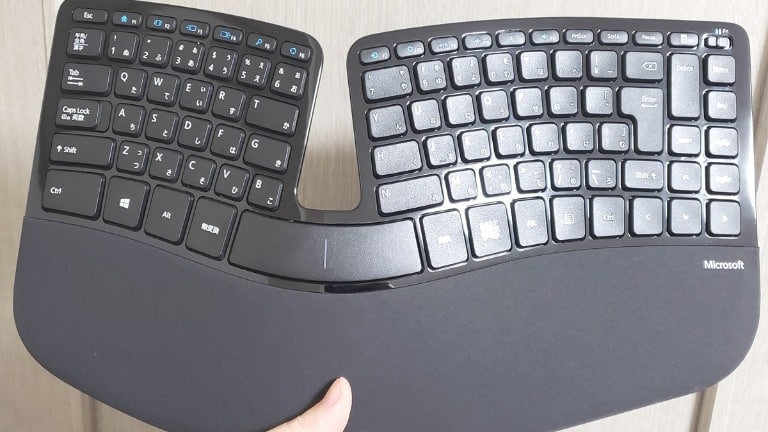
2. Microsoft Sculpt Ergonomic Keyboard Plus Wireless Mouse

Meet the brand new Microsoft Sculpt Ergonomic Keyboard. They have finally done it! After many years (who’s counting anymore?), Microsoft finally put out a new keyboard on their ergonomic line. Is it any good? I’ve had the chance to try it out myself, so here is my own professional opinion on this futuristic-looking keyboard.
First, I have to actually make a note on the title of this page. The keyboard actually comes with a specific mouse. To go over the Microsoft Sculpt Ergonomic Keyboard mouse quickly, I’d say it’s an above-average quality mouse. The basic feature is that it’s slightly more elevated than most mice, which means that it’s putting way less pressure on the user’s wrists. The way the mouse was sculpted (see what I did there?) is definitely reducing the carpal tunnel risks. The less pressure on your wrists, the fewer risks of carpal tunnel pains – it’s as simple as that. All in all, it’s a great mouse and a great additional feature of the keyboard.
Now back to the actual Microsoft Sculpt Ergonomic Keyboard. The first thing that pops out is the separation of the number pad from the main keyboard area. The idea behind is that most people don’t actually use the number pad all that often. Keeping it out of the way of the main keyboard area gives more space for the hands to relax and not try to cover a very wide keyboard. When the user needs it, the number pad is right there next to them. I think it’s a good feature for the average keyboard user.
If like me you are, or were, a user of the good old Microsoft Natural Keyboard 4000 you’ll probably recognize some of the features presented in this one. The space between the center keys has been removed, giving it some sort of futuristic (and let’s be honest, quite cool) look. The tenting has been slightly adjusted from the previous line of keyboards to meet with even more accuracy the needs of the users.
The padding area on the Microsoft Sculpt Ergonomic Keyboard is very comfortable and quite large. This made me very happy, as I have tested several so-called ergonomic keyboards that offered a padding area basically as solid as my table. This one is really comfortable, smooth and will protect your wrists from hurting. The elevation of the padding area, giving your wrists and forearms an elevated angle position is highly efficient.
Features
- As far as other features go, the Microsoft Sculpt Ergonomic Keyboard doesn’t present many. It seems like Microsoft simply used all the best features of their previous ergonomic keyboards and united them into one super-keyboard. The design in itself could be considered a special feature. The removal of the space in between the two main key areas is quite stylish and even though it doesn’t actually serve any purpose, I quite like it.
- The mouse is also a nice touch. It’s always a great bet to purchase a mouse and a keyboard as a package, especially in the ergonomic area, because you are sure that both devices are actually made to work together. If you do end up buying this keyboard (which I recommend you do), make sure you strongly consider getting the mouse with it.
As you can probably guess, I have really enjoyed using the Microsoft Sculpt Ergonomic Keyboard. It’s an incredibly comfortable product to use, and so is the mouse that goes with it. I was also happy to see the price, which in the world of the ergonomic products is actually in the low range. It is definitely an affordable keyboard for anyone that is spending more than a couple of hours on the computer. I highly recommend it.
3. Logitech Ergonomic Keyboard K350

 Its special curves are cleverly designed to make your typing experience a more pleasant and comfortable one. Furthermore, the Logitech Ergonomic Keyboard K350 is easy to set up, easy to use and requires very little time to get used to – unlike some other more advanced ergonomic keyboards.
The particularly clever design of the Logitech Ergonomic Keyboard K350 stands on two specific key elements: the wave keys and the keyboard’s curve.
The keyboard’s curve resembles that of some Microsoft products. The idea is that with the keyboard’s curve, the keys are fitting right into your hands’ positioning without having to bend your wrists towards the exterior. This is a design that a lot of other keyboards have copied since then, but this keyboard really does it justice by coupling it with the wave design detailed further in this review. Unlike other brands, Logitech has decided to keep all the keys at an equal size. By not stretching the center keys (G and H), the Logitech Ergonomic Keyboard K350 actually becomes easier to use and requires a lot less adaptation from its user.
The wave keys design is what really catches the eyes and turns this keyboard into a great ergonomic product. The keyboard is built in such a way the top keys are actually pushed higher than the rest of the keys, having them meet your fingers. As you probably know, wrist bending is one of the most probable causes of RSI. By lifting up the keys, the user doesn’t have to bend his wrists as much when typing, thus reducing the potential injuries. The W, E, R, I, O and P keys are lifted each in a specific way to try and match the lengths of your fingers. This is truly the most important feature of this keyboard and makes it stand out from the competition.
Features
- The wrists rest of the Logitech Ergonomic Keyboard K350 also offers additional comfort to the user. Typing for long hours can result in growing wrists pain, most likely caused by the position of the hands on the keyboard and by resting the wrists on the table. The position of the hands is already covered by both the keyboard’s curve and the wave design of the keys. The only feature remaining is the comfortable wrists rest. The paddings are adjustable and create a centered slope that provides a more upright posture while typing. It has to be noted that the padded wrists rest is not detachable.
- The media control keys at the top of the keyboard also provide for some additional comfort by not having to move your hands from the keyboard to the mouse more than necessary. The placement of the media control keys could have been better (for instance on the side of the keyboard) for even more comfort.
The Logitech Ergonomic Keyboard K350 provides incredibly well-thought-out features such as the curve design of the keyboard and the wave design of the keys. The fact that the keys are reaching your fingers instead of the other way around is a unique way of improving your comfort while typing for long hours. Additionally, the Logitech Ergonomic Keyboard K350 requires very little getting used to thanks to the non-stretched middle keys.
4. Microsoft Natural Ergonomic Desktop 7000

 Does this offering stand true with the fantastic past performance of Microsoft in the ergonomics industry? Let’s have a look.
In typical ergonomic keyboard fashion, the Microsoft Ergonomic Keyboard 7000 has a traditional split keyboard and ‘tenting’ (gradual sloping upwards into the middle of the key area). Microsoft has gone for a wireless offering with this keyboard without a wired option, which may instantly annoy some wireless haters.
We’ve certainly gone down the non-offensive road with the Microsoft Ergonomic Keyboard 7000 as it’s really not too different from a more traditional keyboard setup. This makes it approachable for the not-so-touch touch typers and acceptable for our more esteemed speed typing brethren. Ergonomic keyboards are notorious for being geared towards advanced typists but at least with the Microsoft Ergonomic Keyboard 7000, we all stand a chance.
Read Also: Best Laptops With Backlit Keyboard
For those that are looking for a good example of an ergonomic keyboard then this isn’t for you. There are much better ergonomic keyboards available that are much better for you ergonomically. For those who are looking at an introduction to ergonomics than the Microsoft Ergonomic Keyboard 7000 may be what you’re after.
Features
- In a bid to reduce the amount of keyboard to mouse hand movement this ergonomic keyboard has a multitude of fully programmable hotkeys across the top. These can be programmed to open web browsers, opening emails, play / stop the music and activate any software on the computer. Once you get used to using hotkeys rather than a mouse you’ll never look back, but, it does take some getting used to.
- One of the best things about using a Microsoft product is how it interacts with your computer (if you’re using windows). This keyboard is a good example. I sat and programmed all of my hotkeys and then being a man – instantly forgot what key does what. Thankfully in the middle of the Microsoft Ergonomic Keyboard 7000, there is a ‘My Favourites’ button which pops up a window telling you what your keyboard does. Handy! (or should I say, wristy!)
- Again, to limit keyboard to mouse movement the Microsoft Ergonomic Keyboard 7000 has a scroll wheel / two-way toggle that allows you to either zoom in and out or up and down active pages. There are also two buttons at the bottom of the board to enable you to move back and forward through webpages.
When I write these reviews I always try to use the keyboard I’m reviewing for a sustained amount of time, rather than just taking it out of the box and looking at it. With the Microsoft Ergonomic Keyboard 7000, I’m really glad I did. The reason being the mechanics behind the keys themselves, they are just too solid. A keypress is like a full-body workout and for those that type a lot, which I do, it became almost unbearable.
At first, I thought it was just because it was a new keyboard and that it would settle down and loosen up. Unfortunately after 3 weeks of use it didn’t. Although, Arnold Schwarzenegger would be proud to have fingers like mine are now.
All in all, the Microsoft Ergonomic Keyboard 7000 is a half-decent offering. Fortunately, there are better ergonomic keyboards available for the same price.
5. Microsoft Natural Ergonomic Keyboard 4000

It is one of the most sought after keyboards in the range of the ergonomic products and is highly appreciated by both average users and computers using professionals. This model is part of Microsoft’s “Natural” line.
Microsoft’s “Natural” line of keyboards has excelled in giving their users the comfort they are looking for in an ergonomic keyboard. Even if it will take you some time to get accustomed to it, the Microsoft Natural Ergonomic Keyboard 4000 brings comfort to a whole new level.
The comfort while using this keyboard comes from the slightly elevated centre-piece design and the downward slopping angle of the keys.
The elevated centrepiece gives your wrists a more natural resting place. You will feel the difference immediately simply by placing your hands on it. The angle of your wrists feels more normal by adapting a rotated position around the keys.
Related Posts: Best Budget Laptops For Photoshop
The downward sloping angle on the keys is another revolutionary feature of this keyboard. On your average keyboard, perhaps the one you’re using right now, the flatness of the design makes it so that the user has to elevate his wrists to type and hold them in the air. The slope on the Microsoft Natural Ergonomic Keyboard 4000 prevents that by having the keys meet your fingers higher. You no longer have to bend your wrists upwards.
Features
- With this particular design, the Microsoft Natural Ergonomic Keyboard 4000 drastically reduces the risk of carpal tunnel syndrome and repetitive strain injuries which can be caused by long hours of typing.
- Additionally, the soft leather-like surface covering the wrist rests is also a nice comfortable touch.
- The Microsoft Natural Ergonomic Keyboard 4000 comes with additional shortcut keys. They are not only there to make your life easier, but also give great additional ergonomic comfort by giving you quick access to different features without moving your hands from the keyboard. Reducing the time spent using a mouse is generally a great idea when trying to get rid of or prevent carpal tunnel type of injuries.
- On top of the keyboard, you will find 5 programmable buttons. You can program them so that they open specific programs, open a new browser, or open a special file. You can have access to virtually anything you want with the touch of a button.
- In the middle of the keyboard, between the keys, you will find a zoom button. Using it will allow you to zoom back and forth on the currently active page.
- The Microsoft Natural Ergonomic Keyboard 4000 also provides easy access to 2 buttons in the middle of the pads, tucked in between your wrists. These two buttons allow you to move quickly between previous and next web pages, again, preventing you from having to move your hand to the mouse.
The Microsoft Natural Ergonomic Keyboard 4000 is one of the best ergonomic keyboards available at the moment. The unusual reversed sloped keys, the padded wrists rest and the quick access keys will keep your hands straight and prevent you from making more keyboard-to-mouse movements than you need to. The relatively low price of the product combined with its excellent features and the overall quality makes it a perfect low budget ergonomic keyboard.
Conclusion
I think we have now reached the end of our wonderful piece for the best ergonomic keyboard for small hands, there are some other keyboards one can pick from, but we have only included the best in our list so that you do not waste time choosing one. So, take your pick today!